

Create a new flow from scratch
- Navigate to Flows and click Create Flow in the upper right corner.
- Click Start From Scratch in the upper right corner.
Available triggers
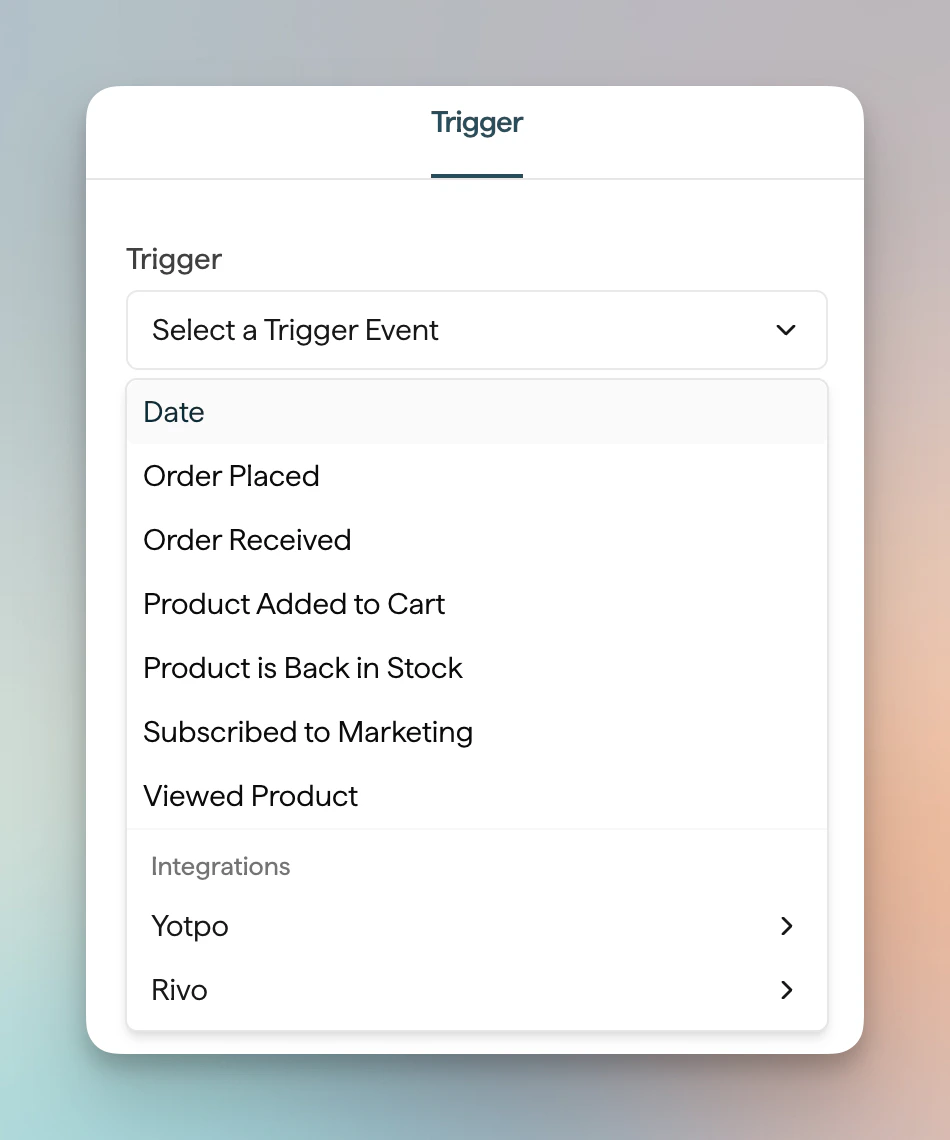
Once in the editor, click the Trigger block to select what starts your flow. The following triggers are available:- Date — the flow starts on or relative to a Date property on a contact, such as a birthday or anniversary
- Order Placed — a customer completes a purchase
- Order Received — a customer receives their order. Available when your store is on Shopify, or when a Custom Integration is connected (delivered shipment status via the Orders API)
- Product Added to Cart — a contact adds a product to their cart and doesn’t update the cart for 10 minutes
- Product is Back in Stock — a product variant becomes back in stock. Shopify only — see Back in Stock
- Subscribed to Marketing — a contact joins your marketing list
- Viewed Product — a contact views a product and doesn’t browse the site again for 10 minutes. Shopify only — see Browse Abandonment
- Integration Events — events from connected integrations such as Yotpo, Rivo, or Junip
- Contact Tagged — one or more Privy or Shopify tags are applied to a contact
- Contact Untagged — one or more Privy or Shopify tags are removed from a contact
- Flow Completed — a contact finishes another flow you select as the source (see Trigger a Flow when another Flow completes)
Trigger a Flow from Tag changes
Use Contact Tagged or Contact Untagged when you want a contact to enter a flow as soon as a tag is added or removed. These triggers can respond to:- Privy Tags applied or removed in Privy, including tags added by imports, contact profile edits, API updates, Zapier updates, a Tag Contact action in another Flow, or a click on a tagged email or SMS link.
- Shopify Tags applied or removed in Shopify and then synced to Privy.
- Privy Tag Added or Privy Tag Removed
- Shopify Tag Added or Shopify Tag Removed
Tag-based flows start from the change event itself. If a contact already has a tag before the flow is published, they will not enter a Contact Tagged flow until that tag is added again in a future update. If a tag has already been removed, the contact will not enter a Contact Untagged flow until that tag is removed again.
Trigger a Flow when another Flow completes
Use Flow Completed to chain flows: a contact who finishes one source flow is automatically enrolled in the new flow. This lets you sequence onboarding, lifecycle, or post-purchase journeys without duplicating audience logic. After choosing the trigger, pick the source flow from the Source Flow selector in the trigger’s side panel. Only the contact’s natural completion of the source flow triggers this flow — contacts removed from the source flow by exit criteria or unsubscribe do not enter. The Flow index marks any flow used as a source with a “used as trigger source” indicator. If you try to delete a source flow, the confirmation dialog calls out the dependent Flow Completed flows by name so you know what will break.If a source flow is deleted, every Flow Completed flow that used it shows a validation warning and stops triggering until you select a new source flow.
Changing the trigger
You can change the trigger at any time while the flow is a draft. If you configure Flow Filters or Split Flow conditions and then want to change the trigger, you’ll be prompted to confirm before they’re cleared.Once the flow is published, the trigger cannot be changed.