> ## Documentation Index
> Fetch the complete documentation index at: https://help.privy.com/llms.txt
> Use this file to discover all available pages before exploring further.
# Install Privy on Weebly
> Start growing your list with Privy displays on your Weebly site.
A unique Privy code must be installed on your Weebly website in order to display your displays and track your website events (e.g., display views).
## Install the Privy app
The Privy app for Weebly performs this installation automatically without the need for coding or development skills. If you would prefer to place the code manually, please follow the *Manual Install* steps instead.
* Install Privy’s official [Weebly app](http://www.weebly.com/app-center/privy).
* Navigate to your Weebly dashboard and publish your site to finish the installation.
## Manual install
The automatic installation provided by the Privy app for Weebly is recommended for most users. Please confirm that the *Automatic Install* does not fit your situation before proceeding with a manual install.
### Copy the code
To install your code, you first need to copy it from your Privy account's settings:
* Navigate to the [Privy Code](https://dashboard.privy.com/settings/widget) page in your account's Settings.
* Locate and select the **Default** or **Asynchronous** tab to reveal its details. The default code is the preferred method to install Privy and will allow it to load in line with everything else on your site. Meanwhile, the asynchronous code will load Privy last.
* Copy the selected code.
### Install the code
To manually install your Privy code onto a Weebly site:
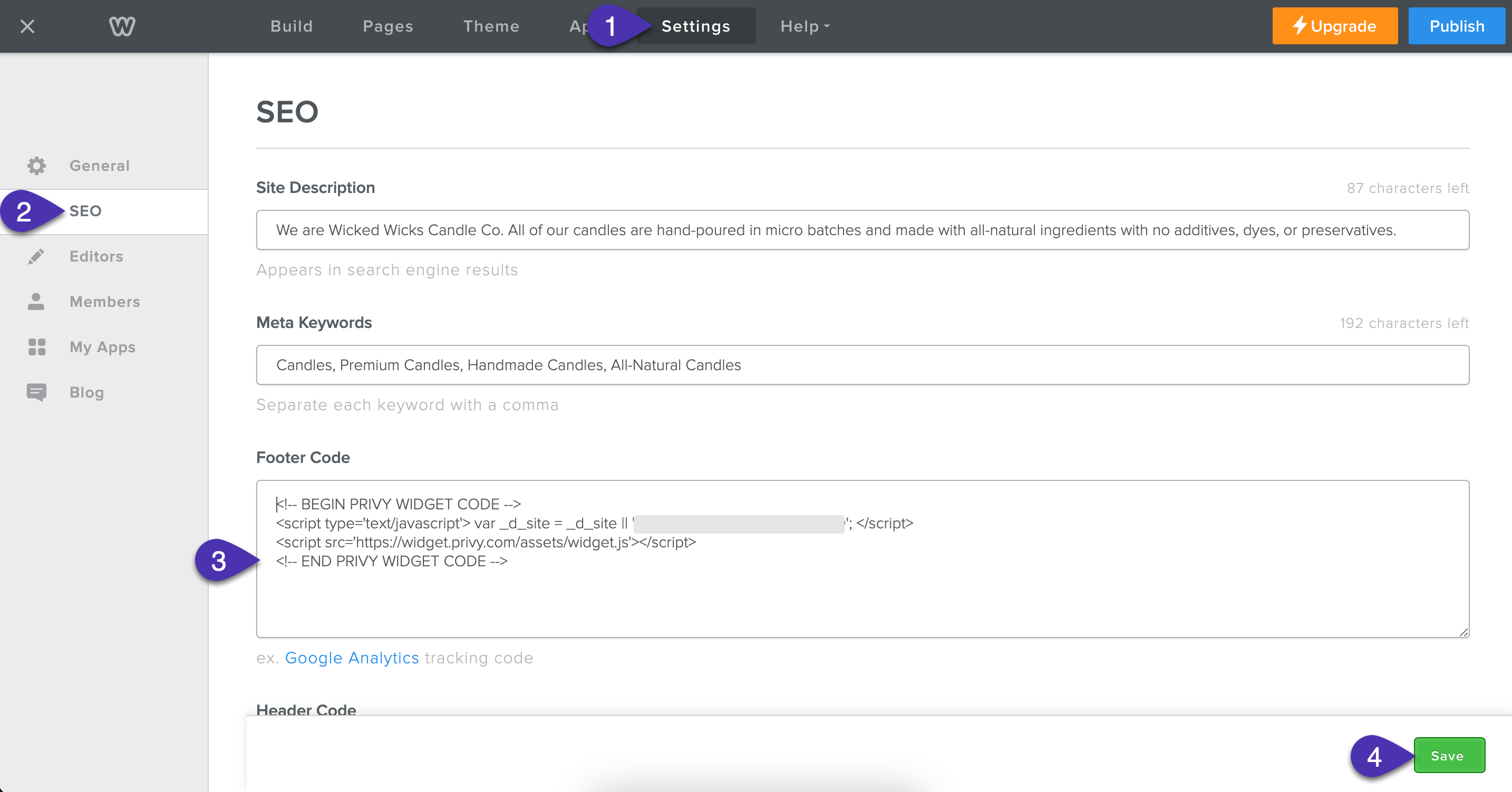
* Log in to your [Weebly](https://www.weebly.com/app/front-door/signin?path=login#/) account and click **Edit**.
* Navigate to **Settings** > **SEO** and paste your Privy code into the **Footer** section.
* **Save**, then publish your site**.**
 ## Verify the installation
The Privy code allows you to display your displays and monitor your website's events (e.g., display views). If your displays aren't displaying properly or event information is missing, verify that the code has been installed and that it's firing correctly:
* Navigate to the [Privy Code](https://dashboard.privy.com/settings/widget) page in your account's Settings.
* In the *Installation Guides* section, locate and copy your account identifier.
* Open a page on your website and right-click anywhere on the page.
* In the dropdown menu, select **View page source** or **View source**.
* Use **CTRL-F** or **CMD-F** to search for the identifier that you copied.
## Verify the installation
The Privy code allows you to display your displays and monitor your website's events (e.g., display views). If your displays aren't displaying properly or event information is missing, verify that the code has been installed and that it's firing correctly:
* Navigate to the [Privy Code](https://dashboard.privy.com/settings/widget) page in your account's Settings.
* In the *Installation Guides* section, locate and copy your account identifier.
* Open a page on your website and right-click anywhere on the page.
* In the dropdown menu, select **View page source** or **View source**.
* Use **CTRL-F** or **CMD-F** to search for the identifier that you copied.
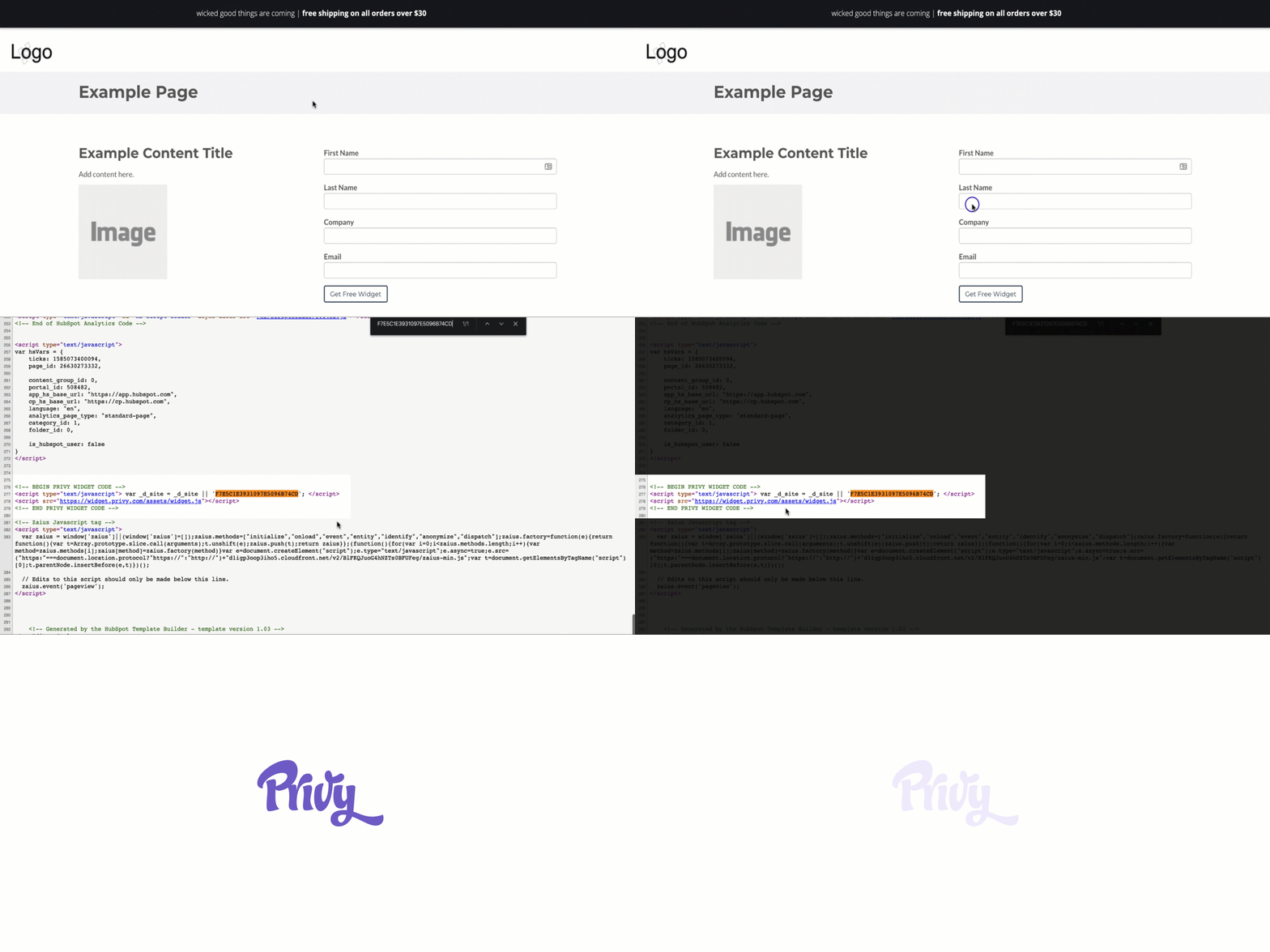 * If the code appears, verify that it has been copied and pasted correctly from your settings.
If the Privy code does not appear or is incorrect, please attempt a fresh install. If your code appears and has been copied and pasted correctly, verify that it's firing:
* Open a page on your website and right-click anywhere on the page.
* In the dropdown menu, select **Inspect Element** or **Inspect**. A toolbar will appear at the bottom or side of your screen.
* Click the **Network** tab, then refresh your page.
* Click the **Name** column to sort the elements alphabetically, then look for widget*.js*.
* Next to *widget.js,* you should see *304 Not Modified* or *200 OK* in the *Status* column.
* If the code appears, verify that it has been copied and pasted correctly from your settings.
If the Privy code does not appear or is incorrect, please attempt a fresh install. If your code appears and has been copied and pasted correctly, verify that it's firing:
* Open a page on your website and right-click anywhere on the page.
* In the dropdown menu, select **Inspect Element** or **Inspect**. A toolbar will appear at the bottom or side of your screen.
* Click the **Network** tab, then refresh your page.
* Click the **Name** column to sort the elements alphabetically, then look for widget*.js*.
* Next to *widget.js,* you should see *304 Not Modified* or *200 OK* in the *Status* column.
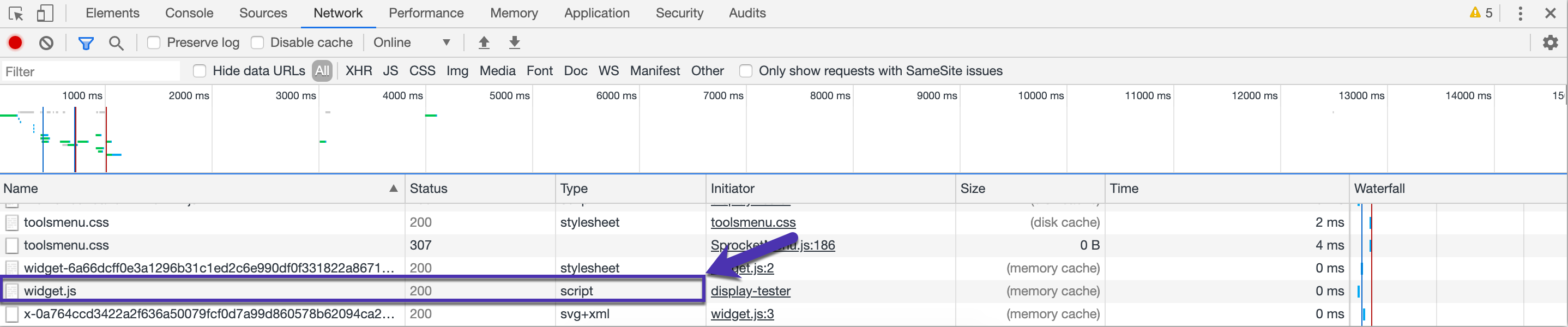 If you see any other status or the .js code is not found, your tracking code may not be firing correctly. [Contact Support](mailto:support@privy.com) for further troubleshooting steps and assistance.