> ## Documentation Index
> Fetch the complete documentation index at: https://help.privy.com/llms.txt
> Use this file to discover all available pages before exploring further.
# Sync Contacts to Klaviyo
> Learn how to connect Privy and Klaviyo and start syncing new contacts.
To sync the contacts captured by your Privy displays into your Klaviyo account, you will first need to integrate the two accounts, then set up sync rules on each of your displays.
## Setting up the integration
To link your Privy account with your Klaviyo account:
1. Navigate to your **Settings** from the bottom left corner of your dashboard.
2. Head to your [Linked Accounts](https://dashboard.privy.com/settings/accounts) page from the left side menu.
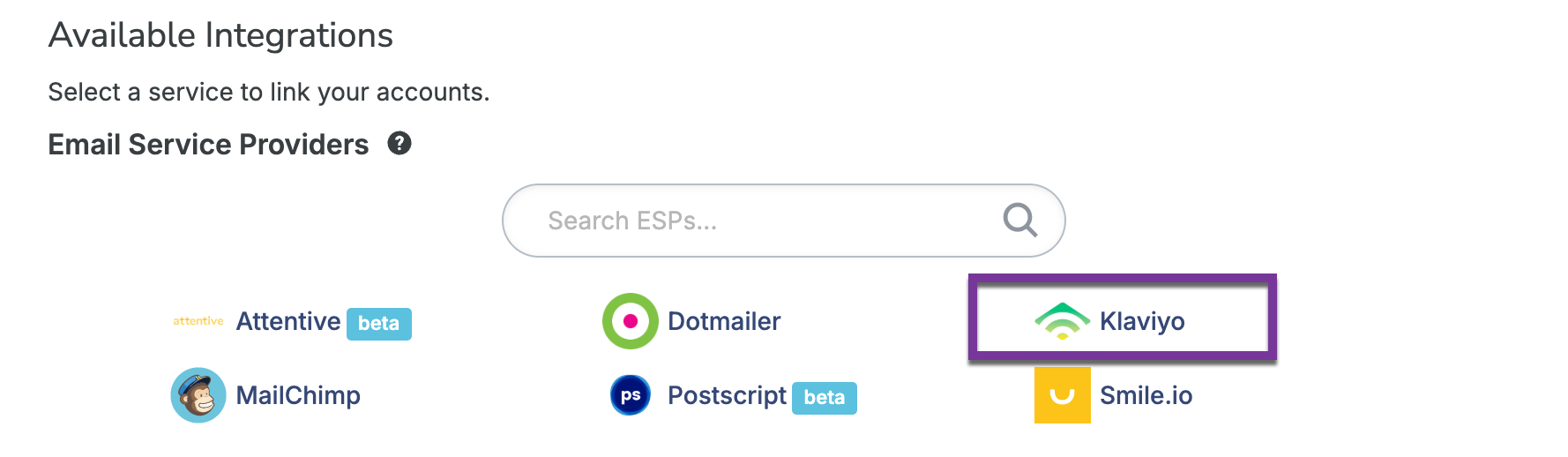
3. Select **Klaviyo** from the list of *Available Integrations.*
4. Create a **new API Key** in your Klaviyo account.
5. Enter your credentials and [API Key](https://www.klaviyo.com/account#api-keys-tab) in the prompt and then select **Link Account**.
When creating the Public API Key we recommend selecting the option "Grant applications full access for every API scope.
 All set! Klaviyo should now appear as a linked account in the *Authorized Accounts* section.
## Add a sync rule to your displays
To add a sync rule to a display so that the collected contacts sync to Klaviyo:
1. Navigate to your [Displays](https://dashboard.privy.com/displays) from your dashboard.
2. Select the display you'd like to sync and navigate to the **Settings** step of the display builder.
3. Click to expand **Advanced Settings** at the bottom left of the page. Scroll to the **Sync Integrations** section.
4. Select **Klaviyo** from the dropdown menu, configure the presented options, and **Save**.
Privy contacts can only sync to Klaviyo lists, not to [Klaviyo segments](https://help.klaviyo.com/hc/en-us/articles/115005061447-The-Difference-Between-Segments-and-Lists). Please be aware that this integration is not a two-way sync, meaning that information can sync from Privy to Klaviyo but cannot sync back from Klaviyo to Privy.
This display's signups will now sync to Klaviyo!
Sync rules must be set up for each individual display.
**Warning:** To successfully sync contacts with a phone number to Klaviyo, the number must be formatted using the [E.164 format](https://en.wikipedia.org/wiki/E.164) on the contact's profile in Privy. When collecting US-based or Canada-based numbers, the +1 country code is not required, as Privy will validate the number and automatically add this information if it is missing. All other numbers must include the country code (e.g., +44 for the UK). Privy will add the plus sign (+) if it is omitted.
## Enabling Klaviyo session cookies in Privy
You can also tag a visitor with a [Klaviyo session cookie](https://help.klaviyo.com/hc/en-us/articles/360034666712-About-Cookies-in-Klaviyo#klaviyo-tracking-cookies1) after capturing an email with a Privy Convert display. This cookie allows you to trigger cart abandonment & browse abandonment emails directly from Klaviyo. To enable this feature:
1. Navigate to your **Settings** from the bottom left corner of your dashboard.
2. Select [**Customizations**](https://dashboard.privy.com/settings/customizations) from the left navigation and scroll down to the *Other Customizations* section.
3. Check the **Enable Klaviyo Javascript integration** setting and then click **Save Changes**.
## Removing the integration
If you need to disconnect your Privy and Klaviyo accounts, follow these steps:
1. Navigate to your **Settings** from the bottom left corner of your dashboard.
2. Head to your [Linked Accounts](https://dashboard.privy.com/settings/accounts) page from the left side menu.
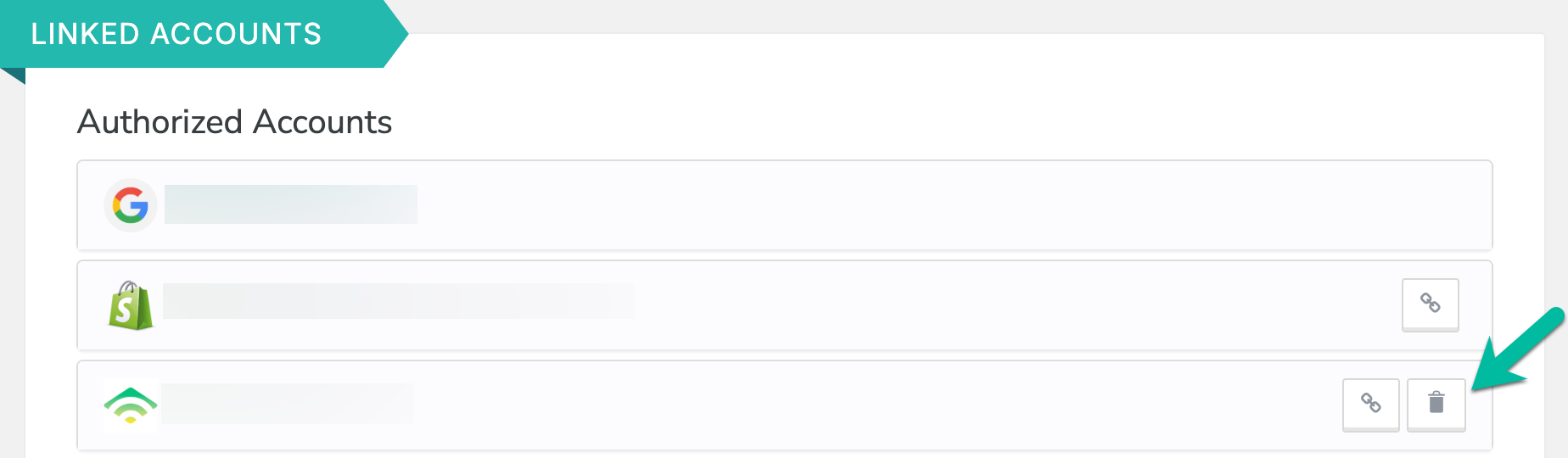
3. Locate your Klaviyo integration under the *Authorized Integrations* section and select the **Delete** icon.
All set! Klaviyo should now appear as a linked account in the *Authorized Accounts* section.
## Add a sync rule to your displays
To add a sync rule to a display so that the collected contacts sync to Klaviyo:
1. Navigate to your [Displays](https://dashboard.privy.com/displays) from your dashboard.
2. Select the display you'd like to sync and navigate to the **Settings** step of the display builder.
3. Click to expand **Advanced Settings** at the bottom left of the page. Scroll to the **Sync Integrations** section.
4. Select **Klaviyo** from the dropdown menu, configure the presented options, and **Save**.
Privy contacts can only sync to Klaviyo lists, not to [Klaviyo segments](https://help.klaviyo.com/hc/en-us/articles/115005061447-The-Difference-Between-Segments-and-Lists). Please be aware that this integration is not a two-way sync, meaning that information can sync from Privy to Klaviyo but cannot sync back from Klaviyo to Privy.
This display's signups will now sync to Klaviyo!
Sync rules must be set up for each individual display.
**Warning:** To successfully sync contacts with a phone number to Klaviyo, the number must be formatted using the [E.164 format](https://en.wikipedia.org/wiki/E.164) on the contact's profile in Privy. When collecting US-based or Canada-based numbers, the +1 country code is not required, as Privy will validate the number and automatically add this information if it is missing. All other numbers must include the country code (e.g., +44 for the UK). Privy will add the plus sign (+) if it is omitted.
## Enabling Klaviyo session cookies in Privy
You can also tag a visitor with a [Klaviyo session cookie](https://help.klaviyo.com/hc/en-us/articles/360034666712-About-Cookies-in-Klaviyo#klaviyo-tracking-cookies1) after capturing an email with a Privy Convert display. This cookie allows you to trigger cart abandonment & browse abandonment emails directly from Klaviyo. To enable this feature:
1. Navigate to your **Settings** from the bottom left corner of your dashboard.
2. Select [**Customizations**](https://dashboard.privy.com/settings/customizations) from the left navigation and scroll down to the *Other Customizations* section.
3. Check the **Enable Klaviyo Javascript integration** setting and then click **Save Changes**.
## Removing the integration
If you need to disconnect your Privy and Klaviyo accounts, follow these steps:
1. Navigate to your **Settings** from the bottom left corner of your dashboard.
2. Head to your [Linked Accounts](https://dashboard.privy.com/settings/accounts) page from the left side menu.
3. Locate your Klaviyo integration under the *Authorized Integrations* section and select the **Delete** icon.