> ## Documentation Index
> Fetch the complete documentation index at: https://help.privy.com/llms.txt
> Use this file to discover all available pages before exploring further.
# Run an A/B Test on an Email Campaign
> Compare versions of a campaign and send the winning version to the rest of your list.
A/B Testing lets you compare different versions of an email campaign to see which one performs better. Send each version to a portion of your audience, wait for results, and automatically deliver the winning version to everyone else.
 ## What to test
Changes that often result in the most significant changes in engagement include:
Try different wording, length, or tone in your subject line.
Test what appears in the inbox preview to boost open rates.
Compare different discount amounts or no discount at all.
Test different layouts or visual styles.
Try product images vs. lifestyle images, or image vs. no image.
We recommend **testing one change per version** so you can identify what made the difference in your results.
## Create an A/B Test
To start a new A/B Test:
* Navigate to [Campaigns](https://dashboard.privy.com/message-campaigns).
* Click **Create Campaign**.
* Choose **A/B Test Email**.
* Name your test and click **Continue**.
### Email Creation
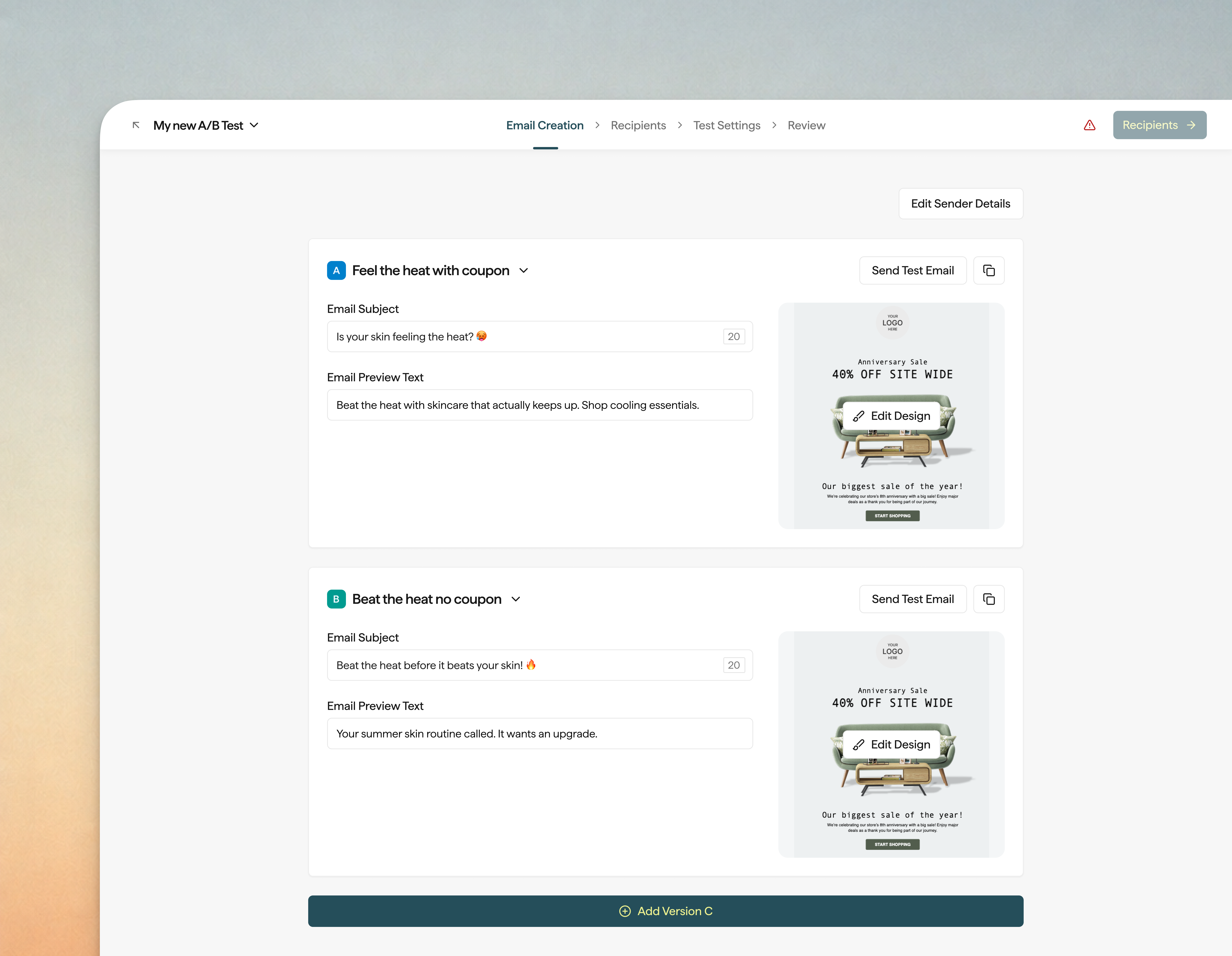
In the Email Creation tab, you'll create 2 to 5 versions of your campaign.
**Version A** is your control. It uses the campaign's existing email.
To add more versions:
* Click **Add Version** to add Version B, C, D, or E.
* Give each version a **Version Name** for internal tracking.
* Customize each version's **Email Subject**, **Email Preview Text (Optional)**, and design using **Edit Design**.
* Use **Send Test Email** to preview how each version looks in your inbox.
Each version can have its own coupon. The coupon merge tag must be added to that version's design.
You can duplicate or remove versions at any time. You need at least two versions to continue.
**Edit Sender Details** sets the From Business Name, From Email, and Reply To Email for all versions. These details are shared across the test.
### Recipients
Select one or more segments to send your test to. You can also exclude a segment if needed.
The audience is frozen when you send the test. Changes to your segments after sending won't affect who receives the campaign.
### Test Settings
## What to test
Changes that often result in the most significant changes in engagement include:
Try different wording, length, or tone in your subject line.
Test what appears in the inbox preview to boost open rates.
Compare different discount amounts or no discount at all.
Test different layouts or visual styles.
Try product images vs. lifestyle images, or image vs. no image.
We recommend **testing one change per version** so you can identify what made the difference in your results.
## Create an A/B Test
To start a new A/B Test:
* Navigate to [Campaigns](https://dashboard.privy.com/message-campaigns).
* Click **Create Campaign**.
* Choose **A/B Test Email**.
* Name your test and click **Continue**.
### Email Creation
In the Email Creation tab, you'll create 2 to 5 versions of your campaign.
**Version A** is your control. It uses the campaign's existing email.
To add more versions:
* Click **Add Version** to add Version B, C, D, or E.
* Give each version a **Version Name** for internal tracking.
* Customize each version's **Email Subject**, **Email Preview Text (Optional)**, and design using **Edit Design**.
* Use **Send Test Email** to preview how each version looks in your inbox.
Each version can have its own coupon. The coupon merge tag must be added to that version's design.
You can duplicate or remove versions at any time. You need at least two versions to continue.
**Edit Sender Details** sets the From Business Name, From Email, and Reply To Email for all versions. These details are shared across the test.
### Recipients
Select one or more segments to send your test to. You can also exclude a segment if needed.
The audience is frozen when you send the test. Changes to your segments after sending won't affect who receives the campaign.
### Test Settings
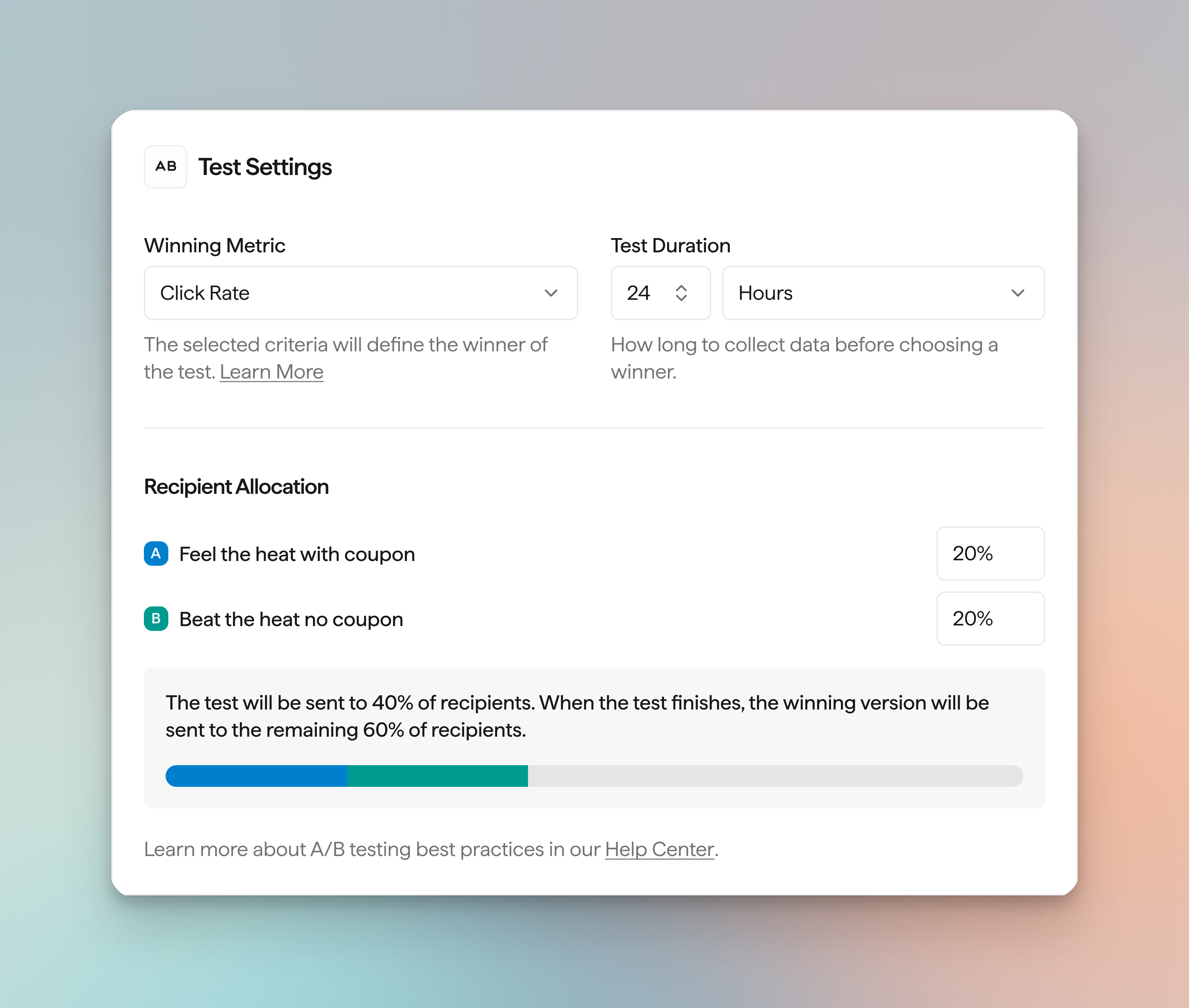 Configure how your test will run:
**Winning Metric**
Choose how Privy will determine the winner:
* **Click Rate** — The version with the highest percentage of clicks wins.
* **Order Rate** — The version with the highest percentage of orders wins.
Click Rate is the default winning metric.
**Test Duration**
Set how long Privy will collect data before choosing a winner. You can specify hours or days.
The test duration starts after all test-cohort sends are complete.
**Recipient Allocation**
Set what percentage of your audience receives each version during the test. You can allocate from 1% to 100% per version.
The allocations are approximate, especially on smaller lists.
If you allocate less than 100% total, the remaining recipients will receive the winning version after the test completes. If you allocate 100%, there will be no one left to send the winner to.
Smaller allocations make it harder to identify a clear winner. Privy will show guidance when your allocation is too small to produce reliable results.
### Review and Send
The Review tab shows an overview of your test: number of versions, winning metric, test duration, and total recipients.
When you're ready:
* Click **Send** to start the test immediately.
* Click **Schedule** to pick a future date and time for the test to start.
After the test starts, the test content, audience, allocations, metric, and duration are frozen. You can cancel an in-flight test, but messages already sent cannot be recalled.
## How the winner is chosen
Privy calculates a rate for each version:
* **Click Rate** = clicks for that version ÷ emails delivered for that version
* **Order Rate** = orders for that version ÷ emails delivered for that version
The version with the highest rate wins. A larger allocation does not automatically win — only the rate matters.
If two or more versions tie for that highest rate, **Version A** (the control) wins when it is one of the tied versions. If Version A is not among the tied versions, Privy picks one of the tied versions at random.
If no version has any engagement data, **Version A** wins.
The decision uses data collected through the test deadline. Later activity may change the live report but won't change which version won.
After the winner is chosen, Privy sends that version to the remaining recipients (if any are left outside the test allocation).
## Reporting
Configure how your test will run:
**Winning Metric**
Choose how Privy will determine the winner:
* **Click Rate** — The version with the highest percentage of clicks wins.
* **Order Rate** — The version with the highest percentage of orders wins.
Click Rate is the default winning metric.
**Test Duration**
Set how long Privy will collect data before choosing a winner. You can specify hours or days.
The test duration starts after all test-cohort sends are complete.
**Recipient Allocation**
Set what percentage of your audience receives each version during the test. You can allocate from 1% to 100% per version.
The allocations are approximate, especially on smaller lists.
If you allocate less than 100% total, the remaining recipients will receive the winning version after the test completes. If you allocate 100%, there will be no one left to send the winner to.
Smaller allocations make it harder to identify a clear winner. Privy will show guidance when your allocation is too small to produce reliable results.
### Review and Send
The Review tab shows an overview of your test: number of versions, winning metric, test duration, and total recipients.
When you're ready:
* Click **Send** to start the test immediately.
* Click **Schedule** to pick a future date and time for the test to start.
After the test starts, the test content, audience, allocations, metric, and duration are frozen. You can cancel an in-flight test, but messages already sent cannot be recalled.
## How the winner is chosen
Privy calculates a rate for each version:
* **Click Rate** = clicks for that version ÷ emails delivered for that version
* **Order Rate** = orders for that version ÷ emails delivered for that version
The version with the highest rate wins. A larger allocation does not automatically win — only the rate matters.
If two or more versions tie for that highest rate, **Version A** (the control) wins when it is one of the tied versions. If Version A is not among the tied versions, Privy picks one of the tied versions at random.
If no version has any engagement data, **Version A** wins.
The decision uses data collected through the test deadline. Later activity may change the live report but won't change which version won.
After the winner is chosen, Privy sends that version to the remaining recipients (if any are left outside the test allocation).
## Reporting
 To view your A/B test results:
* Navigate to [Campaigns](https://dashboard.privy.com/message-campaigns).
* Locate your test. A/B Test Email campaigns appear with **A/B Test** or **Email A/B Test** and show the version count.
* Click to open the campaign report.
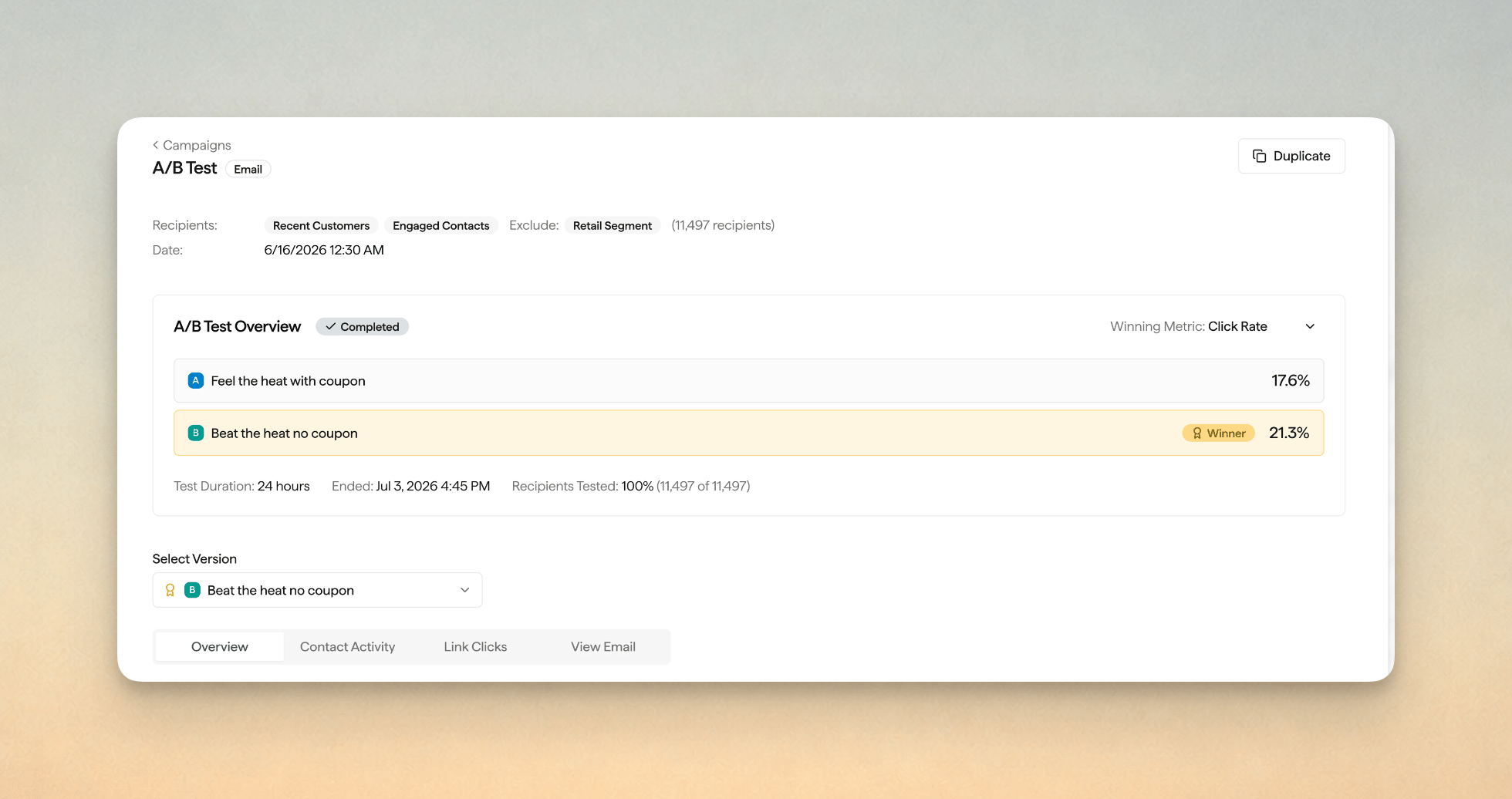
At the top of the report, you'll see an **A/B Test Overview** card. This card compares each version on the winning metric you selected and marks the **Winner**.
The status shows whether your test is **Live**, **Completed**, or **Canceled**:
* **Live** tests display **Time Remaining** and **Recipients Tested So Far**.
* **Completed** tests show **Ended** and **Recipients Tested**.
Use **Select Version** to scope the rest of the report to a specific version. When you select a version, the **Overview**, **Contact Activity**, **Link Clicks**, and **View Email** tabs all show data for that version only.
Later opens and clicks may change the live report numbers, but they do not change the winner. The winner is determined by data collected through the test deadline. See [How the winner is chosen](#how-the-winner-is-chosen) for details.
## Tracking
Links in an A/B Test Email include `utm_content` set to that version's **Version Name**, so Google Analytics and other tools can separate Version A from Version B.
This happens automatically on A/B Test Emails:
* Each version's links include `utm_content` with that version's **Version Name**.
* Ordinary (non-A/B) campaigns and Flows do not include `utm_content`.
You can change this under **Business Settings → [Tracking Parameters](https://dashboard.privy.com/settings/tracking-parameters)**. The **Content** row can use **Variant Name** or **Variant ID**.
For more about how Privy tracks link activity, see [How UTM Parameters Work](/docs/learn/content/how-utm-parameters-work).
## Tips for reliable results
* Test one element at a time so you know what caused the difference.
* Allocate enough of your audience to each version. Very small percentages rarely produce a clear winner.
* Give your test enough time. Open and click behavior takes hours to unfold.
* Make sure each version's design is complete before sending. You cannot edit versions after the test starts.
To view your A/B test results:
* Navigate to [Campaigns](https://dashboard.privy.com/message-campaigns).
* Locate your test. A/B Test Email campaigns appear with **A/B Test** or **Email A/B Test** and show the version count.
* Click to open the campaign report.
At the top of the report, you'll see an **A/B Test Overview** card. This card compares each version on the winning metric you selected and marks the **Winner**.
The status shows whether your test is **Live**, **Completed**, or **Canceled**:
* **Live** tests display **Time Remaining** and **Recipients Tested So Far**.
* **Completed** tests show **Ended** and **Recipients Tested**.
Use **Select Version** to scope the rest of the report to a specific version. When you select a version, the **Overview**, **Contact Activity**, **Link Clicks**, and **View Email** tabs all show data for that version only.
Later opens and clicks may change the live report numbers, but they do not change the winner. The winner is determined by data collected through the test deadline. See [How the winner is chosen](#how-the-winner-is-chosen) for details.
## Tracking
Links in an A/B Test Email include `utm_content` set to that version's **Version Name**, so Google Analytics and other tools can separate Version A from Version B.
This happens automatically on A/B Test Emails:
* Each version's links include `utm_content` with that version's **Version Name**.
* Ordinary (non-A/B) campaigns and Flows do not include `utm_content`.
You can change this under **Business Settings → [Tracking Parameters](https://dashboard.privy.com/settings/tracking-parameters)**. The **Content** row can use **Variant Name** or **Variant ID**.
For more about how Privy tracks link activity, see [How UTM Parameters Work](/docs/learn/content/how-utm-parameters-work).
## Tips for reliable results
* Test one element at a time so you know what caused the difference.
* Allocate enough of your audience to each version. Very small percentages rarely produce a clear winner.
* Give your test enough time. Open and click behavior takes hours to unfold.
* Make sure each version's design is complete before sending. You cannot edit versions after the test starts.